
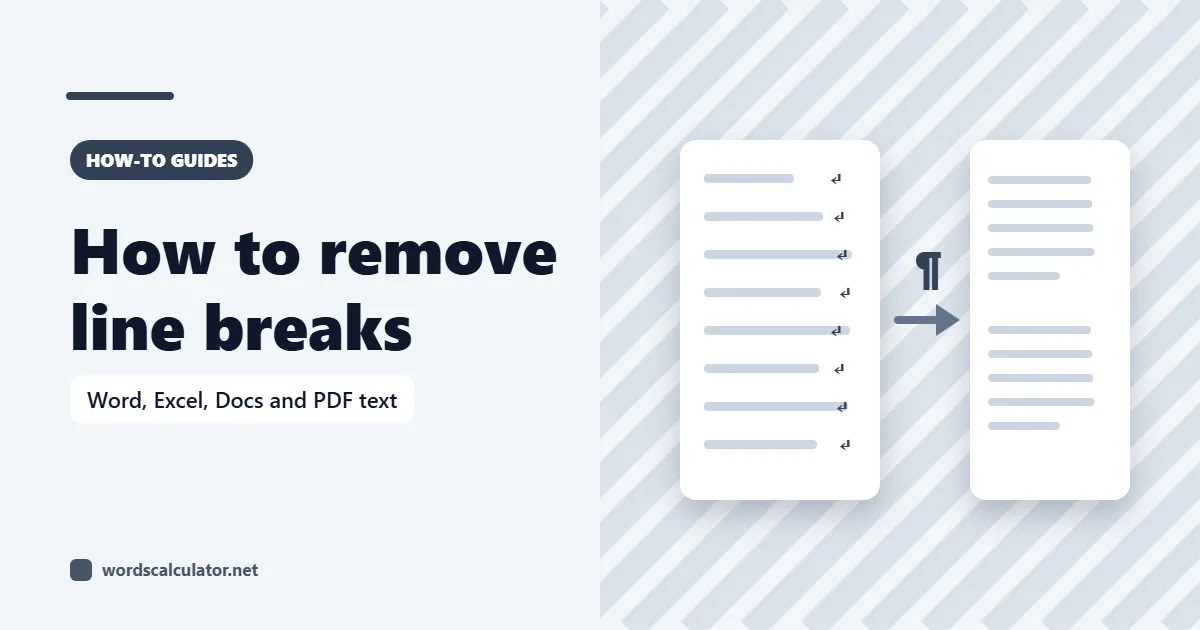
Here's how to remove line breaks: open Find and Replace and swap each break for a space. In Microsoft Word, search for ^p (paragraph mark) or ^l (manual line break); in Excel, press Ctrl+J in the Find what box; in a code editor, search for \n with regular expressions on. To keep your real paragraphs, protect the double breaks first.
The replace itself is easy. The hard part is knowing which kind of break you have and removing it without gluing words together or flattening every paragraph.
What is a line break, exactly?
Most programs have more than one kind of break, and they don't look the same to Find and Replace. In Word there are two you'll meet all the time:
Paragraph mark (¶): what you get when you press Enter. Word searches for it as ^p.
Manual line break (↵): what you get with Shift+Enter. It starts a new line without starting a new paragraph, and Word searches for it as ^l (OfficeTooltips).
Soft wrap: the point where text simply runs out of room and continues on the next line. It isn't a character at all, so there's nothing to remove. Widen the window and it moves.
Plain text files use the same idea with different names. A line feed (LF, written \n) ends a line on macOS and Linux, and Windows files usually use a carriage return plus a line feed (CRLF, written \r\n) (Wikipedia). That difference matters later, because removing only \n from a Windows file can leave invisible \r characters behind.
How to remove line breaks in Word
Word's Find and Replace understands special codes that start with a caret (^). Here's the full process for removing every paragraph break in a selection or document:
Select the text you want to fix. If nothing is selected, Word works on the whole document.
Open Find and Replace with Ctrl+H, or go to Home > Editing > Replace (Microsoft Support).
Make sure Use wildcards is switched off under More. With wildcards on, ^p doesn't work and the Special list changes (Microsoft Q&A).
In Find what, type ^p. You can also pick Paragraph Mark from the Special menu.
In Replace with, type a single space.
Select Replace All.
If your breaks came from Shift+Enter, or from text pasted out of an email or web page, repeat the steps with ^l in Find what.
Code in Find what | What it finds | Typical source |
|---|---|---|
^p | Paragraph mark | Enter key, most pasted text |
^l | Manual line break | Shift+Enter, emails, web pages |
^t | Tab | Copied tables and columns |
^m | Manual page break | Ctrl+Enter |
^13 | Paragraph mark (wildcards on) | Use instead of ^p in wildcard mode |
The codes come from Microsoft's own search notation reference, and the ^13 tip for wildcard mode is from a Microsoft Q&A answer. Note that ^l uses a lowercase L, not a capital I or the number 1.
How to remove line breaks but keep paragraphs
This is the version most people actually need. Text copied from a PDF, an old email or a plain-text file often has a break at the end of every line and a blank line between paragraphs. Replace every ^p with a space and you lose the paragraphs too.
The fix is to park the real paragraph breaks somewhere safe, remove the rest, then put the paragraphs back. It works in any editor that has Find and Replace. A contributor describes the same placeholder approach on Microsoft Q&A.
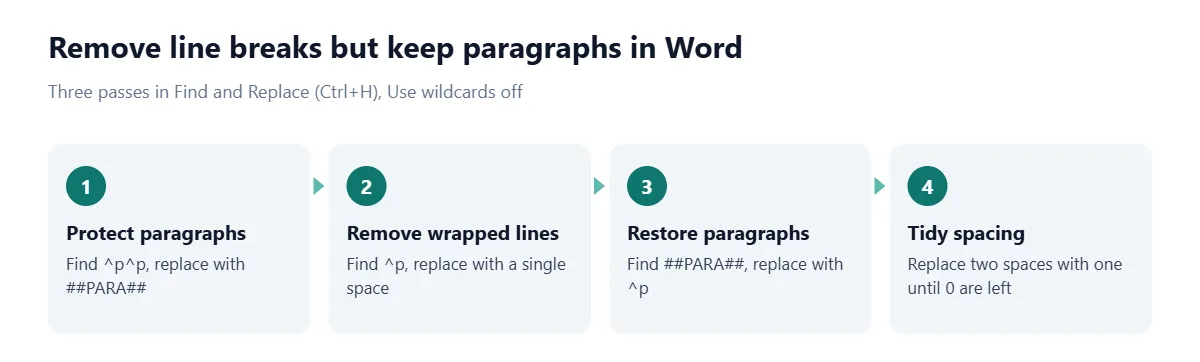
Replace ^p^p (two paragraph marks in a row, which is how a blank line looks) with a placeholder such as ##PARA##. Pick something that can't appear in your text.
Replace ^p with a space. Only the unwanted single breaks are left, so they all go.
Replace ##PARA## with ^p. Each paragraph is back on its own, now as one clean line.
Optional: replace two spaces with one, and run it until Word reports zero replacements.
If the text has no blank lines between paragraphs at all, no find-and-replace pattern can tell a wrapped line from a new paragraph reliably. You'll have to add the paragraph breaks back by hand, or use a tool that guesses from punctuation and then check the result.
How to remove line breaks in Google Docs
Google Docs is the awkward one. Its Find and replace (Edit > Find and replace) does support regular expressions, but Google's help page says plainly that regular expression replacements, "including capture groups and special characters like \n for newlines", only work in Google Sheets (Google Docs Editors Help). Many tutorials still tell you to replace \n in Docs. As of September 2026, Google's own documentation says that won't work.
So the practical routes are:
Clean the text before it goes into Docs. Paste it into the Text Cleaner, unwrap the lines, then copy the clean version into your document.
Fix it in Word and bring it back. Download the doc as a Word file, use the Word method above, and upload it again. This keeps headings and basic formatting.
How to remove line breaks in Excel and Google Sheets
A line break inside a cell is character 10 (the line feed). You add one on Windows with Alt+Enter (Microsoft Support), and it shows up in data exported from forms, CRMs and address fields. There are two ways to get rid of it.
Find and Replace with Ctrl+J
Select the cells, press Ctrl+H, click in Find what and press Ctrl+J. The box will look empty, but the cursor drops slightly because a line break is now in it (Microsoft Q&A). Type a space or a comma in Replace with and select Replace All.
Formulas that keep your original data
Formula | What it does | Watch out for |
|---|---|---|
=SUBSTITUTE(A2,CHAR(10)," ") | Swaps each break for a space | Can leave double spaces |
=TRIM(SUBSTITUTE(A2,CHAR(10)," ")) | Swaps breaks, then tidies spaces | Doesn't touch non-breaking spaces |
=SUBSTITUTE(A2,CHAR(10),", ") | Turns a stacked address into one line | Adds a comma at every break |
=CLEAN(A2) | Deletes codes 0 to 31, breaks included | Joins words with no space |
=REGEXREPLACE(A2,"\n"," ") | Google Sheets only: regex version | Needs a text value |
The CLEAN trap catches a lot of people. Microsoft's documentation says CLEAN removes the first 32 nonprinting ASCII characters, codes 0 to 31 (Microsoft Support). That includes the line break, but CLEAN deletes it rather than replacing it, so "Main Street" on one line and "Springfield" on the next becomes "Main StreetSpringfield". Use SUBSTITUTE when the break separates words, and wrap it in TRIM, which leaves a single space between words (Exceljet). The SUBSTITUTE pattern is the one Exceljet recommends too.
In Google Sheets, the REGEXREPLACE function takes text, a pattern and a replacement, and Sheets' Find and replace can also match \n when you tick the regular expressions box.
How to remove line breaks in Notepad++ and VS Code
Code editors are the fastest option for big files, because they treat line breaks as ordinary characters you can search for.
Notepad++: open Search > Replace (Ctrl+H) and set Search Mode to Extended. Find \r\n for Windows files or \n for others, and replace with a space. In Regular expression mode, \R matches any kind of newline, which saves you from guessing (Notepad++ User Manual).
VS Code: open Find and Replace, turn on the Regular Expression option in the find control, then search for \n and replace with a space (VS Code docs). A regex search runs across lines once it contains \n (VS Code 1.29 release notes).
To keep paragraphs in a code editor, use the same placeholder idea as in Word: replace \n\n (a blank line) with ##PARA##, replace the remaining \n with a space, then replace ##PARA## with \n\n. In Notepad++ Extended mode on a Windows file, use \r\n\r\n and \r\n instead.
Why text copied from a PDF has line breaks everywhere
A PDF is built to look the same on every screen, not to be edited. The text is placed on the page line by line, and the file doesn't have to record where paragraphs begin or end. That structure comes from optional tags, which Adobe notes aren't required for a PDF to display (Adobe Acrobat Help). When you copy, you get what's there: a hard break after every printed line.
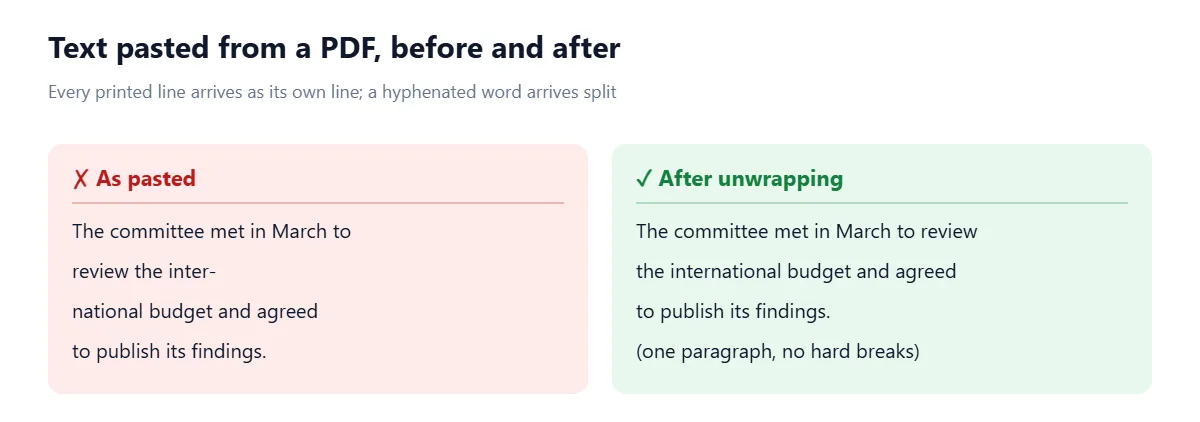
Two more PDF habits to look for after pasting:
Split words. A word hyphenated at the end of a line arrives as "inter-" on one line and "national" on the next. Removing the break alone gives you "inter- national". Search for a hyphen followed by a space and check each one, because some hyphens are real.
Headers, footers and page numbers. They're ordinary text in the middle of your paste. Delete them before you unwrap, or they get merged into sentences.
How to remove line breaks online
If you'd rather not build Find and Replace patterns, our Text Cleaner does the keep-paragraphs job in one step. Paste your text and pick the Copied PDF recipe, or switch on Unwrap copied lines on its own. It joins lines broken mid-sentence, keeps the blank line between paragraphs, and rejoins words hyphenated at a line end. The Changes tab shows every edit before you press Apply cleanup, and the text never leaves your browser.
Once the text is one clean block, paste it into the Word Counter if you're working to a limit. Stray breaks inflate paragraph counts, so it's worth checking after the cleanup rather than before. For more ways to get an accurate count, see how to check word count.
Common mistakes when removing line breaks
Replacing breaks with nothing. Unless each line already ends in a space, words at the line edges get glued together. Replace with a space, then collapse double spaces.
Leaving Use wildcards switched on in Word. ^p won't match, and it looks as if your document has no paragraph marks.
Removing \n from a Windows file but not \r. The text looks joined, but hidden carriage returns can break formulas, imports and searches later.
Flattening lists and headings. A bulleted list or a heading is also a paragraph. Select only the body text before you run Replace All, or fix lists afterwards.
Trusting CLEAN in Excel for addresses. It removes the break without adding a space. Use SUBSTITUTE instead.
Frequently asked questions
How do I remove line breaks in Word?
Press Ctrl+H, type ^p in Find what and a single space in Replace with, then select Replace All. Repeat with ^l to catch manual line breaks made with Shift+Enter.
How do I remove line breaks but keep paragraphs?
Replace double breaks (^p^p in Word) with a placeholder, replace the remaining single breaks with a space, then replace the placeholder with a paragraph break.
What is the code for a line break in Find and Replace?
In Word, ^p finds a paragraph mark and ^l finds a manual line break. In regex-based tools such as VS Code or Notepad++, \n is a line feed and \r\n is a Windows line ending.
How do I remove line breaks in Excel?
Use =SUBSTITUTE(A2,CHAR(10)," ") in a helper column, or select the cells, press Ctrl+H and type Ctrl+J in Find what, then replace with a space.
Can Google Docs find and replace line breaks?
Not reliably. Google's help says regular expression replacements with \n only work in Google Sheets, so clean the text in another tool before pasting it into Docs.
Why does text from a PDF have so many line breaks?
PDFs place text line by line and often don't record paragraphs, so copying gives you a hard break after every printed line. Unwrap the lines and rejoin hyphenated words to fix it.
What is the difference between a line break and a paragraph break?
A paragraph break (Enter) ends a paragraph and carries paragraph spacing and styles. A line break (Shift+Enter) starts a new line inside the same paragraph.
Is there a free line break remover?
Yes. Paste your text into our Text Cleaner and choose "Unwrap copied lines": it joins the lines inside each paragraph with a space and keeps the blank line between paragraphs.
Sources
Microsoft. Find and replace text in Word. Microsoft Support.
Microsoft. Show or hide tab marks in Word. Microsoft Support.
Microsoft. Use search options in your Word add-in to find text. Microsoft Learn.
Microsoft Q&A. How to find and replace line breaks in Microsoft 365?
Microsoft Q&A. Remove line breaks keeping paragraph breaks
Microsoft Q&A. Why can't I find and replace hard returns in Word 2013?
OfficeTooltips. Line breaks in a Word document.
Google. Search and use find and replace. Google Docs Editors Help.
Google. REGEXREPLACE. Google Docs Editors Help.
Microsoft. Start a new line of text inside a cell in Excel. Microsoft Support.
Microsoft Q&A. Find and replace line breaks in a cell
Microsoft. CLEAN function. Microsoft Support.
Exceljet. Remove line breaks and TRIM function.
Notepad++ User Manual. Searching.
Microsoft. Basic editing and October 2018 (version 1.29) release notes. Visual Studio Code.
Newline. Wikipedia.
Adobe. Editing document structure with the Content and Tags panels. Adobe Acrobat Help.

Comments