
Here's how to check word count in Google Docs: press Ctrl + Shift + C (⌘ + Shift + C on a Mac) or go to Tools > Word count. In Microsoft Word, look at the status bar at the bottom of the window. In Pages, click View in the toolbar and choose Show Word Count.
That covers the big three. But a word count is only useful if it's the right one, and apps disagree about what counts. Below are step-by-step instructions for every common app and device, what each one leaves out, and how to count a PDF, a web page or a spreadsheet cell.
How to see word count on Google Docs
Google Docs gives you two ways to see the count, plus a keyboard shortcut (Google Docs Help):
Open your document and click Tools > Word count, or press Ctrl + Shift + C on Windows and ChromeOS, or ⌘ + Shift + C on a Mac (Google Docs keyboard shortcuts).
A box opens showing pages, words, characters and characters excluding spaces.
To keep the count on screen, tick Display word count while typing and click OK. A small counter appears in the bottom-left corner and updates as you write.
To count only part of the document, select that text first. The box then shows the count for your selection.
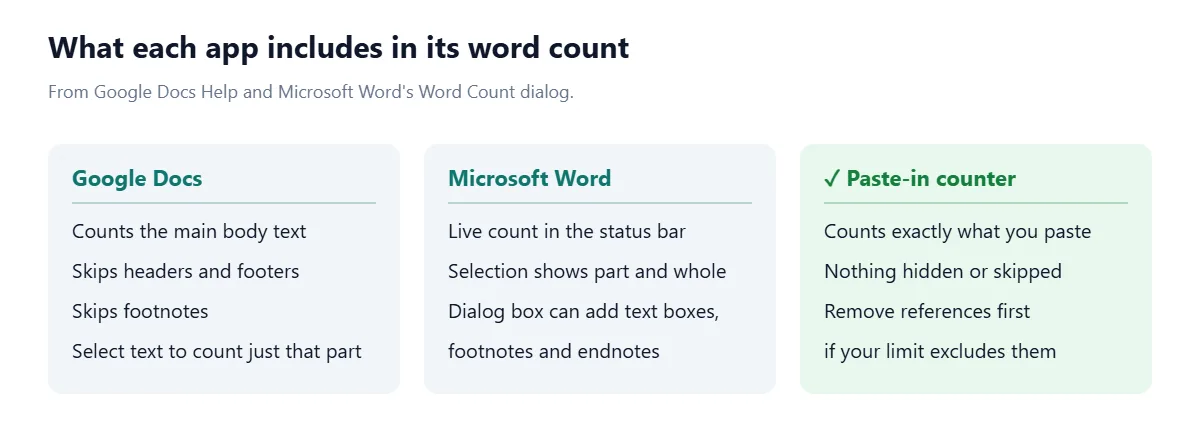
One detail matters for essays and reports: unless you select part of the document, Google Docs counts "everything except headers, footers, and footnotes". If your limit includes footnotes, you'll need to add them yourself.
Google Docs on Android, iPhone and iPad
Open the document in the Google Docs app, tap More, then tap Word count. You'll see words, characters and characters excluding spaces (Google Docs Help).
How to check word count in Microsoft Word
Word counts as you type and shows the total in the status bar along the bottom of the window. This works in Word for Microsoft 365, Word 2024 and Word 2021 on Windows and Mac, and in Word for the web (Microsoft Support).
For part of a document, select the text. The status bar then shows the count for the selection and for the whole document.
For characters, paragraphs and lines, click the word count in the status bar to open the full statistics.
If the count isn't showing, right-click the status bar and choose Word Count to turn it back on (Microsoft Support).
Including footnotes, endnotes and text boxes
The Word Count dialog, which you can open from Review > Proofing > Word Count in desktop Word, has a check box labeled Include textboxes, footnotes and endnotes (University of Sussex IT guide). Microsoft uses the same Review > Proofing > Word Count path when you write email in Outlook (Microsoft Support).
Tick the box if your word limit counts footnotes, leave it clear if it doesn't. This is the single most common reason two people get different totals for the same Word file.
How to check word count in Pages on Mac and iPhone
On a Mac, click the View button in the Pages toolbar and choose Show Word Count. Click the arrows on its right side to switch between characters (with or without spaces), words, paragraphs and pages (Apple Support).
On an iPhone, tap the More button, tap View Options, then turn on Show Word Count. The counter sits near the bottom of the screen and you can drag it to a corner. Tap it to switch to another statistic (Apple Support).
On both, selecting text changes the counter to show only the selection. To hide it again on a Mac, open the View menu button and choose the Hide option.
How to check word count on a PDF
Adobe Acrobat doesn't have a word count tool. An Adobe community expert answering the question put it bluntly: "Acrobat is not a word processor" (Adobe Community). You have two practical options.
Option 1: use a document word counter. Our Document Word Counter reads Word files, PDFs and text files and gives you the totals without retyping anything.
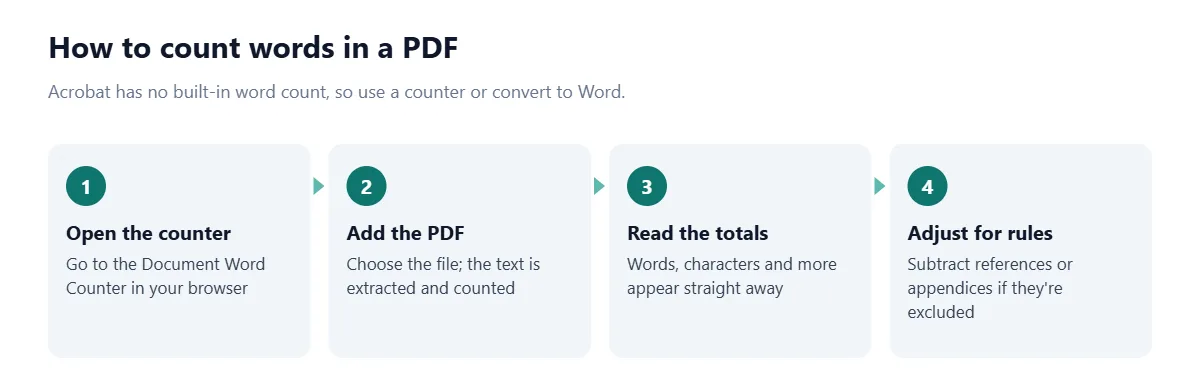
Option 2: convert the PDF to Word. If you have Acrobat, choose Convert from the top tools bar, or All tools > Export a PDF, and pick Microsoft Word (Adobe Help). Open the result in Word and read the status bar. Conversion can break text across boxes or columns, so give the result a quick look.
How to check word count on your phone
If you write in the Google Docs or Pages apps, use the steps above. For anything else (a notes app, an email draft, a message), copy the text, open the Word Counter in your phone's browser and paste. It shows words, characters, sentences, paragraphs and reading time, and the text stays in your browser.
How to count words in an Excel or Google Sheets cell
Spreadsheets don't have a word count button, but a formula does the job. For text in cell A1:
=IF(LEN(TRIM(A1))=0, 0, LEN(TRIM(A1)) - LEN(SUBSTITUTE(TRIM(A1), " ", "")) + 1)
Here's how it works. TRIM removes "all spaces from text except for single spaces between words" (Microsoft Support), so the words are separated by exactly one space. LEN counts characters, and SUBSTITUTE swaps out text (Microsoft Support). The formula compares the length with and without spaces: the difference is the number of spaces, and one more than that is the number of words. The IF part returns 0 for an empty cell instead of 1.
The same formula works in Google Sheets. One catch: TRIM only removes the ordinary space character, not the non-breaking spaces that often come with text copied from web pages, so pasted text can give a low count. Cleaning it first in the Text Cleaner avoids that.
How to check the word count of a web page
Select the text and paste it into a word counter, or skip the copying and give the page's address to the Website Word Counter. Copying by hand tends to pick up menus, buttons and footer links, which inflates the count.
Why do different apps give different word counts?
Because "a word" isn't defined the same way everywhere. The differences come from three places:
What differs | Example | What to do |
|---|---|---|
Which parts are counted | Docs skips footnotes; Word can include them | Match the app to your rules |
What you selected | A selection shows only part of the text | Click away to see the full total |
How words are split | Hyphenated words, URLs, numbers, dashes | Use the counter your reader uses |
Hidden text in pasted copy | Menus, captions, alt text from the web | Clean text before counting |
The third row catches people out. Google's and Microsoft's help pages don't spell out how they treat things like "well-known", a web address or "2026–27", and tools can split them differently. The gap is small, but it matters when you're right on a limit.
The better rule: if a limit is strict, count in the same tool your teacher, publisher or application portal uses, and leave yourself a margin of about 1 percent. For a 650-word limit that's 6 or 7 words of breathing room.
What usually counts toward a word limit?
That's set by whoever gives you the limit, not by the software. Whether the title, headings, quotations, footnotes, reference list or appendices count differs from one teacher, journal and application to the next, so check the brief before you count. If it doesn't say, ask. If you're writing an application, our guide to how long a college essay should be covers the specific limits.
Once you know what's excluded, count only the parts that are included. The easiest way is to select just those sections in Docs, Word or Pages, or paste them alone into a counter.
Common word count mistakes
Reading a selection count as the total. In Word the status bar shows both; in Docs, a selection replaces the total.
Forgetting footnotes. Docs leaves them out of the full-document count; Word only adds them if the dialog box is ticked.
Counting a converted PDF without checking it. Columns and text boxes can be split or merged during conversion.
Counting a scanned document. No text layer means no words to count until OCR has run.
Trusting a count of copied web text. Navigation and captions come along for the ride.
Frequently asked questions
What is the shortcut for word count in Google Docs?
Press Ctrl + Shift + C on Windows or ChromeOS, or ⌘ + Shift + C on a Mac. You can also open it from Tools > Word count.
How do I keep the word count visible in Google Docs?
Open Tools > Word count, tick 'Display word count while typing' and click OK. A live counter then appears in the bottom-left corner.
Where is the word count in Microsoft Word?
It's in the status bar at the bottom of the window. If it's missing, right-click the status bar and choose Word Count.
Does Google Docs word count include footnotes?
No. Google Docs counts everything except headers, footers and footnotes unless you select a specific part of the document.
Does Word count footnotes?
Only if you want it to. In the Word Count dialog, tick 'Include textboxes, footnotes and endnotes' to add them to the total.
How do I check the word count of a PDF?
Acrobat has no word count tool, so upload the PDF to a document word counter or convert it to Word and read the status bar. Scanned PDFs need OCR first.
How do I check word count on an iPhone?
In Pages, tap More > View Options > Show Word Count. In the Google Docs app, tap More > Word count. For other apps, paste the text into an online word counter.
Why is my word count different in Word and Google Docs?
The apps include different parts of the document (such as footnotes) and can split hyphenated words, numbers and links differently. Use the same tool as the person setting your limit.
How do I see the word count on Google Docs while typing?
Open Tools > Word count and tick "Display word count while typing". A small counter then stays in the bottom-left corner of the document, and you can click it to switch between words, characters and pages.
Does Google Docs word count include the title and headings?
Yes. Google Docs counts all body text, including the title and headings, but leaves out headers, footers and footnotes. Select only the parts your limit covers to count those alone.
Sources
Google Docs Editors Help. Check your word count in Google Docs. Google.
Google Docs Editors Help. Keyboard shortcuts for Google Docs. Google.
Microsoft Support. Show word count. Microsoft.
Microsoft Support. Find the word count of your presentation. Microsoft.
Microsoft Support. Count the number of words in an email message. Microsoft.
University of Sussex ITS. Can I find out how many words there are in my essay?.
Apple Support. Show word count and other statistics in Pages on Mac. Apple.
Apple Support. Show word count and other statistics in Pages on iPhone. Apple.
Adobe Community. Word count a PDF in Acrobat Pro 2023. Adobe, 2023.
Adobe Help. Export PDFs to Word, Excel and other formats. Adobe.
Microsoft Support. TRIM function. Microsoft.
Microsoft Support. Text functions (reference). Microsoft.

Comments