
A text difference is only useful when its rules are visible
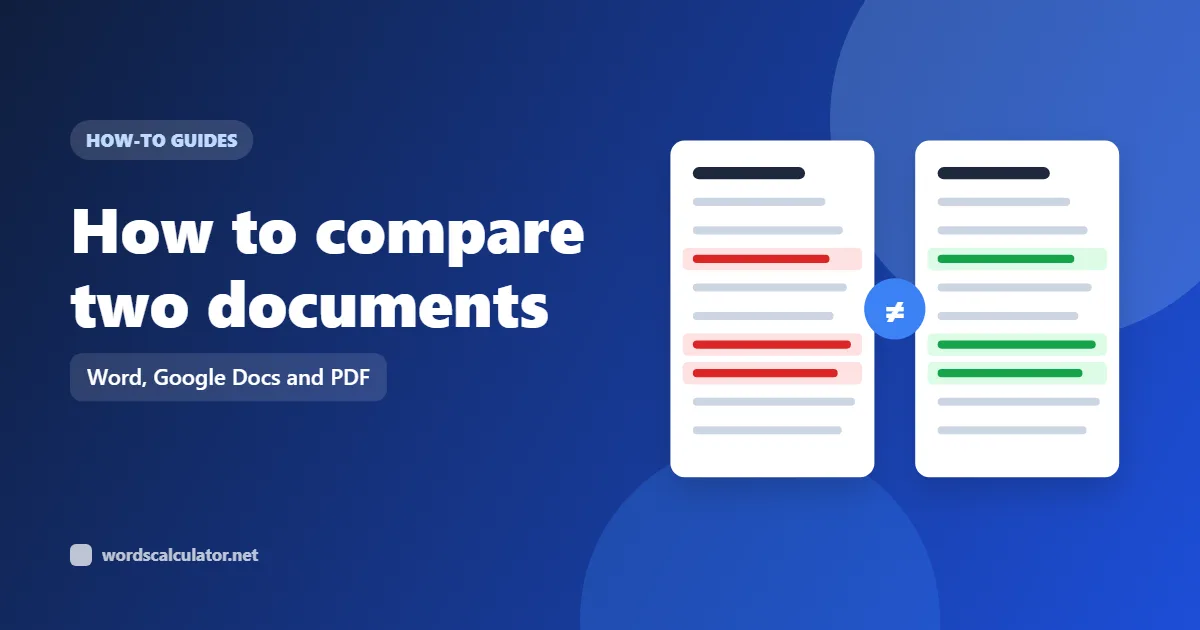
A useful text comparison does more than color two passages red and green. It must decide what counts as one unit, separate a replacement from an insertion or deletion, retain enough unchanged context to explain the edit, and disclose every rule that can hide a difference. This compare text tool puts those decisions beside the result. The two source versions remain untouched while you move between a unified diff, parallel columns, and a focused change list.
How to compare two versions without overwriting either one
Place the earlier draft in Original and the newer draft in Revised. You can paste text, type directly, or import a plain-text, Markdown, CSV, JSON, HTML, or XML file up to 5 MB. Import reads the file as text; it does not render markup or execute code. Start with word comparison for ordinary prose. The report updates in the browser and the similarity meter, change totals, and version measurements all describe the currently selected rules.
Read a comparison as evidence, not as an automatic editorial judgment. Removed material is labelled with a minus-style treatment and added material with a plus-style treatment; text labels supplement color for people who cannot reliably distinguish the hues. A replacement appears as an adjacent removal and addition grouped into one change. Previous and Next move through those groups, while the inspector supplies a short original-versus-revised audit.
Use Swap when the versions are reversed. New comparison clears both fields but keeps browser undo snapshots available. Draft recovery is session-only unless you explicitly select Remember this draft on this device for a field. Copy creates a portable patch, and exports range from a readable PDF or editable DOCX report to DIFF, CSV, and JSON records suited to review or further processing.
- 1Identify the versions
Put the earlier source in Original and the revision in Revised.
- 2Match the editing question
Choose a unit and enable only rules that truly belong outside scope.
- 3Inspect before exporting
Pair the totals with context, then choose a report format.
Choose the smallest unit that still carries meaning
Word mode is the practical default for essays, articles, emails, policies, product copy, and most revised prose. It keeps spaces and punctuation visible while matching word-like sequences, so a changed term is easier to identify than a cluster of individual letters. Joined forms containing apostrophes or common dash characters stay together when they occur between letters or numbers. This boundary is a useful editorial convention, not a universal linguistic definition of a word.
Line mode treats each line, including its ending, as a comparison unit. It works well for checklists, subtitles, configuration, simple code, addresses, and structured notes where movement between rows matters more than wording inside a row. A changed line is intentionally reported as a whole replacement. If a line contains a long rewritten paragraph and you need the exact phrase, switch back to Words after locating it.
Sentence mode uses the browser's locale-aware sentence segmenter. It answers a broader question: which complete statements were added, removed, or replaced? This is helpful for policy reviews and structural editing, but abbreviations and specialist punctuation can produce boundaries a human editor would handle differently. Character mode uses Unicode grapheme segmentation, so a joined emoji or a letter with a combining mark is handled closer to one visible symbol instead of being split into misleading UTF-16 code units.
| Level | Best question | Useful for |
|---|---|---|
| Words | Which phrasing changed? | Essays, articles, email, policy copy |
| Lines | Which rows changed? | Lists, subtitles, notes, simple code |
| Sentences | Which statements changed? | Structural and policy review |
| Characters | Which visible symbols changed? | Names, identifiers, careful proofreading |
Ignore rules narrow the question; they do not clean the text
Exact comparison is the safest starting point because case, spaces, punctuation, accents, and line endings can all carry meaning. Ignore case is useful when capitalization is outside the review scope. Collapse whitespace treats a run of spaces, tabs, or breaks as one space; Ignore whitespace removes it from matching altogether. These settings can make versions look equal even though their source bytes differ, which is why the equal-state message points back to the active rules.
Ignore punctuation strips Unicode punctuation and symbols from the comparison keys, not from the displayed source. It can focus a wording review but may also hide a changed decimal sign, operator, apostrophe, or emoji. Ignore accents decomposes letters and removes combining marks, allowing café and cafe to match. That can be appropriate for a loose search, but it is not appropriate when diacritics distinguish names or words. Ignore blank lines is most useful in line-based lists and code-like material.
Normalize Unicode compares canonically equivalent spellings after NFC normalization. Two strings can look the same while storing a precomposed character in one version and a base letter plus combining mark in the other; normalization prevents that storage detail from becoming a false edit. Normalize line endings treats Windows CRLF, classic CR, and Unix LF breaks consistently. Both are enabled initially because they generally remove encoding noise rather than editorial meaning, and both can be turned off for forensic inspection.
- Begin exact when every textual difference may matter.
- Ignore only the categories outside your review scope.
- Treat punctuation and accents as meaningful by default.
- Reset rules before claiming the sources are identical.
Read the diff, then read the number
Unified view reads like one continuous passage: unchanged context remains plain, deletions are struck through and labelled, and insertions are underlined and labelled. It is compact and works particularly well for a short paragraph or a phone screen. Changes only removes unchanged runs so an editor can scan a long revision quickly. The ellipsis between separated groups means context was omitted; it does not represent content in either source.
Side by side aligns grouped operations in Original and Revised columns. Empty cells explicitly say that material exists only in the other version. This is usually the clearest view for line comparisons and approval meetings, while unified view preserves reading flow. On a narrow screen the table remains horizontally inspectable instead of compressing both versions into unreadable slivers. The source editors themselves stack vertically on mobile.
Similarity is calculated from unchanged comparison units relative to the combined unit count. It is descriptive, not a plagiarism verdict, authorship score, or legal measure. A one-word edit in a long passage can produce a high percentage; reversing a short list can produce a low one despite using the same words. Change groups count adjacent additions and removals as one review location, while added and removed word totals count the actual changed text. Always pair the percentage with the visible diff.
Comparison method and primary references
The comparator first segments both sources at the chosen level, then creates a normalized matching key for each unit while retaining its original display text. Equal prefixes and suffixes are removed from the expensive middle search. The remaining units use a Myers shortest-edit-path comparison, the family of algorithms documented for Git's default diff behavior. Adjacent removes and adds are combined into review rows, but no attempt is made to claim why an author changed them.
Very large, almost entirely different middles can require excessive trace memory. A guard converts that unmatched middle into one replacement block and shows a warning rather than freezing the page. Shared prefixes and suffixes still remain accurate, and Line mode often gives a more useful report for large files. All comparison work, imported-file reading, and standard exports run locally in the browser; PDF and DOCX creation is loaded only when requested.
Unicode Standard Annex #29 describes default grapheme, word, and sentence boundaries; browsers expose compatible segmentation through Intl.Segmenter. Git documents practical diff concepts and format conventions. The HTML standard defines ins and del as additions and removals, and WCAG guidance explains why color alone must not convey meaning. These references shape the implementation, but editorial policies, contract review, regulated records, and source-code validation may require a domain-specific comparison system and human sign-off.
- Git documentationDiff algorithm and format conceptsOpen source
- Unicode UAX #29Grapheme, word, and sentence boundariesOpen source
- HTML Living StandardAdditions and deletions in documentsOpen source
- WCAG 2.2 guidanceDo not communicate through color aloneOpen source
Text comparison questions
Practical boundaries for interpreting edits, similarity, rules, privacy, and exports.
How do I compare two text files online?
Import or paste the earlier file into Original and the later file into Revised. Choose Words for prose or Lines for structured files, then inspect the highlighted result and change list. Plain-text, Markdown, CSV, JSON, HTML, and XML files up to 5 MB are read locally as text; complex binary Word or PDF files should first be converted to text.
What is the difference between word, line, sentence, and character comparison?
The level controls the smallest matched unit. Word mode isolates phrasing edits, Line mode treats complete rows as units, Sentence mode reviews whole statements, and Character mode exposes visible-symbol changes. A finer mode is more detailed but can create a noisier report, so choose the level that matches the editing question.
Does the similarity percentage detect plagiarism?
No. Similarity reports how many selected comparison units remain unchanged between the two supplied versions under the active rules. It does not search external sources, identify authorship, interpret quotation, or make a plagiarism decision. Use it to describe a revision, not as evidence of originality.
Can I ignore capitalization, punctuation, accents, or spaces?
Yes. Open Rules to ignore case, punctuation, accents, blank lines, or whitespace. You can also normalize Unicode and line endings. These controls change matching and totals without rewriting the source fields. Because an ignored difference may still matter, the tool warns that equality follows the selected rules.
Why does exact text sometimes show as equal?
Unicode normalization or line-ending normalization may reconcile different internal encodings that display the same way. Other active ignore rules can also hide differences. Open Rules and reset them, then disable normalization if you need a storage-level inspection. Character mode compares grapheme clusters, not raw bytes.
What do unified and side-by-side diff views mean?
Unified view places removed and added fragments in one reading flow. Side by side aligns an Original cell with a Revised cell for each operation group. Changes only omits unchanged runs for fast scanning. All three views represent the same comparison result and do not alter either source.
Can the compare text tool handle large documents?
It trims equal beginnings and endings before comparing the unmatched middle, which makes long but lightly revised documents efficient. A memory guard groups an exceptionally large, dissimilar middle into one replacement and displays a warning. For long lists, logs, or code-like text, Line mode is usually faster and clearer.
Which export format should I choose?
PDF is convenient for a fixed review report, DOCX for an editable handoff, DIFF for a compact plus-and-minus representation, CSV for a spreadsheet audit of grouped changes, and JSON for structured settings, metrics, sources, and changes. Exported reports identify the chosen comparison level and preserve both supplied versions.
Are my original and revised drafts uploaded?
No. Comparison, file reading, normalization, and result generation run in your browser. A draft survives the current tab session, and longer local storage is used only if you select Remember this draft on this device. The tool does not require an account.
Is the diff reliable for contracts or source code?
It provides an inspectable general-purpose text diff, but it does not understand clauses, tracked changes, syntax, moved blocks, or legal significance. Use exact or line mode as a preliminary check, retain the originals, and use the review system required by your legal, publishing, or software workflow for final approval.