
Here's how to compare two documents quickly. Let software find the differences for you: in Microsoft Word use Review > Compare, in Google Docs use Tools > Compare documents, and for PDFs use Compare files in Adobe Acrobat Pro. Each one builds a new comparison document that marks every insertion and deletion, and leaves both originals untouched.
Picking the right method matters more than most guides admit. The same two files can show five changes in one tool and fifty in another, depending on whether formatting, line breaks and tracked changes are counted. This guide covers the steps for each app and how to get a comparison you can trust.
Which tool should you use to compare documents?
Start with where the files already are. Converting a Word file to a PDF (or the other way round) just to compare it adds noise, because layout changes show up as differences.
Your files | Use this | What you get |
|---|---|---|
Two Word files (.docx) | Word desktop: Review > Compare | New document with tracked changes |
Two Google Docs | Docs: Tools > Compare documents | New Doc with suggested edits |
Two PDFs | Acrobat Pro: Compare files | Report with a summary page |
Earlier version of one Doc | Docs: version history | Changes highlighted by editor |
Plain text from anywhere | Highlighted diff, exportable | |
Code or data files | diff, or VS Code Compare Selected | Line-by-line differences |
One gap to know about: as of September 2026, Microsoft's feature comparison lists Compare and Merge as a desktop-only feature, with no tick for Word for the web (Microsoft Support). If you only have the browser version, open the files in the desktop app or copy the text into a comparison tool.
How to compare two Word documents
Word's Compare feature has been around for years and it's still the best choice for .docx files. These are the steps for Word for Microsoft 365, Word 2024 and Word 2021 on Windows (Microsoft Support):
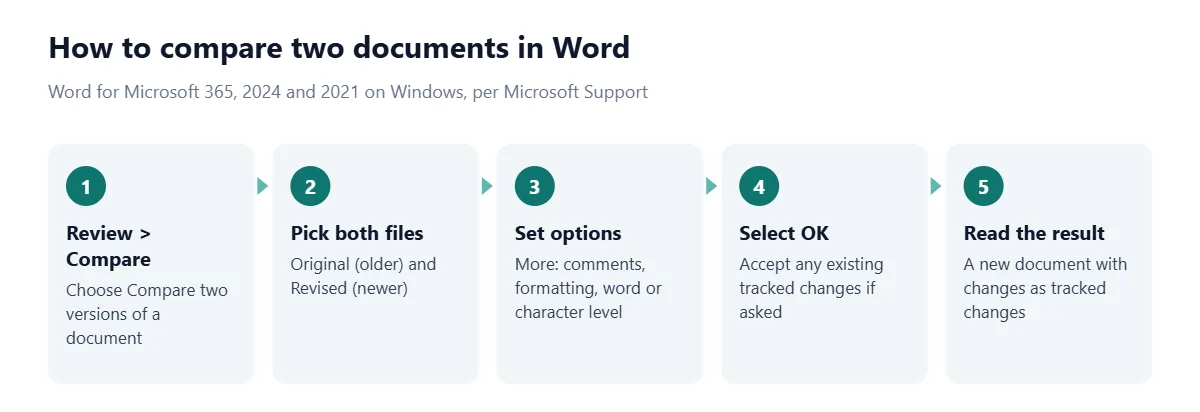
Open Word and go to the Review tab, then select Compare.
Choose Compare two versions of a document (legal blackline).
Under Original document, pick the earlier version. Under Revised document, pick the later one.
Select More to choose what counts as a change: comments, formatting and text changes. You can also show changes at the character level or the word level.
Select OK. If either file already contains tracked changes, Word asks to accept them before it compares.
Review the result. By default it opens as a new document, with the revised file's changes shown as tracked changes.
Microsoft notes that you can send the result into the original or revised file instead of a new one, but doing so modifies that file (Microsoft Support). Keep the default. A separate comparison document is easier to share and can't damage either source.
On a Mac the path is similar: Review > Compare > Compare Documents, then choose the original and revised files. Microsoft's Mac page says changes from the revised copy are merged into a new copy based on the original, and the original stays untouched (Microsoft Support). The same menu has Combine Documents for merging two reviewers' edits into one file, which is a different job from comparing.
How to compare documents side by side in Word
Sometimes you don't want a marked-up file, just both versions on screen. Open both documents, go to View, and select View Side by Side in the Window group. Turn on Synchronous Scrolling and both scroll together (Microsoft Support).
This is useful for checking layout, images or tables, where tracked changes are hard to read. For wording, though, side-by-side reading is slow and error-prone. People skim, and a single changed number in a long clause is easy to miss. Use it to review, not to find the changes.
How to compare two documents in Google Docs
Google Docs has its own comparison tool, announced in 2019 (Google Workspace Updates):
Open the first document and choose Tools > Compare documents.
Select the document you want to compare it with from your Drive.
In Attribute differences to, enter the name to show as the author of the changes.
Select Compare, then open the new document.
The result is a new Doc in which existing suggested edits from both files are accepted, and every difference appears as a suggested edit labeled with the name you entered. You can then accept or reject each one like any other suggestion.
Comparing versions of the same Google Doc
If you want to see how one Doc changed over time, you don't need Compare at all. Click Last edit at the top right to open version history, which shows who changed what and when. You can also name up to 40 versions of a document, which stops them being merged into others and makes milestones easy to find (Google Docs Editors Help). Naming the version you sent to a client is a good habit.
How to compare two PDF files
Adobe Acrobat Pro includes a Compare files tool. Adobe's help page lists it as an Acrobat Pro feature (Adobe Acrobat Help).
Open Acrobat and select Compare files from the All tools pane.
Choose the old and new files. You can swap them if you picked them the wrong way round.
Tick Compare text only if layout and images don't matter to you.
Select Compare.
The result opens with a summary page: when the comparison ran, which files were compared, the total number of changes and how they're distributed. Adobe notes that annotation, formatting and background differences are off by default, and you can switch them on from the Filter menu. You can also limit the comparison to certain pages, which helps with a long report where only one section was revised (Adobe Acrobat Help).
No Acrobat Pro? Copy the text out of each PDF and paste it into a text comparison tool. Expect every line to end with a hard break, though, since PDFs rarely keep paragraphs intact when copied. Run both versions through the Text Cleaner with the same settings first, so the only differences left are real ones.
How to compare two texts online
For text that isn't sitting in Word, Docs or Acrobat, a browser-based comparison is quickest. Our Compare Text tool works like this:
Paste the original on the left and the new version on the right, or import a text, Markdown, CSV, JSON, HTML or XML file.
Choose what to compare by: words for essays and articles, lines for lists and code, sentences for heavy rewrites, characters for typos and product codes.
In the Rules tab, choose to ignore letter case, spacing, punctuation, accents or blank lines if they don't matter.
Step through each change, then export the result as a PDF, Word, CSV, JSON or .diff file.
Sentence mode is the one worth trying on edited prose. When a paragraph has been rewritten, a word-by-word diff turns into a mess of tiny edits, while sentence mode shows which sentences changed. The comparison runs in your browser and nothing is saved on a server. If you also need to check that an edit stayed within a limit, the Word Counter gives you the before and after totals.
How diff tools compare files
Every tool in this guide is a descendant of diff, a Unix program written at Bell Labs in the early 1970s by Douglas McIlroy and James Hunt. It works by solving the longest common subsequence problem: find the longest run of content both files share in the same order, and everything outside it is a deletion or an insertion (Wikipedia).
The GNU version compares files line by line; its companion tools compare bytes (cmp), three files at once (diff3) and merge two files interactively (sdiff) (GNU diffutils manual). In VS Code, select two files in the Explorer and choose Compare Selected, or run code --diff from a terminal (VS Code docs).
The line-by-line approach explains a common surprise. If one version has its text wrapped at different points, a line-based diff reports almost every line as changed, even when not one word differs. Compare by word or sentence instead, or remove the line breaks first.
What is a redline document?
A redline is a copy of a document that shows the changes between two versions: deleted text struck through and added text underlined, traditionally in red. According to a common account, the term comes from marking up paper drafts in red pen, and "blackline" from the fact that photocopies of those markups came out black (Wikipedia).
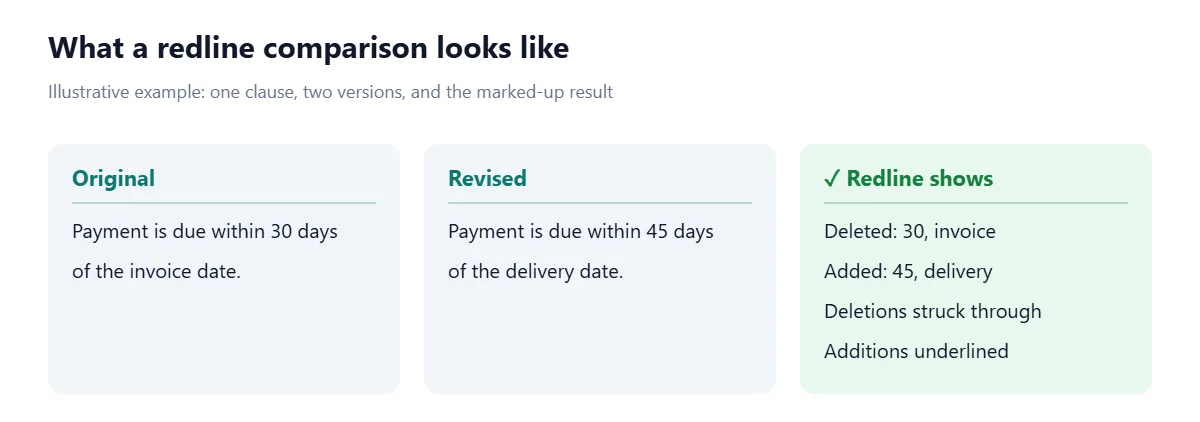
Here's the catch: people don't use the two words consistently. DocuSign, for example, describes a redline as showing every change including formatting and a blackline as a clean comparison of two versions without the edit history (DocuSign). Microsoft calls Word's comparison a "legal blackline". Other firms use the words interchangeably. If someone asks you for a redline or a blackline, confirm which two versions they want compared and whether formatting changes should show.
Why your comparison shows too many changes
Formatting differences. Restyled headings, new fonts and different spacing count as changes in Word and, if you turn them on, Acrobat. Turn formatting off to see wording only.
Tracked changes already in the files. Word asks to accept them before comparing. Accept them in copies, not in your only version.
Different line wrapping. Text copied from PDFs or emails can break at different points in each version. Compare by word, or unwrap the lines first.
Invisible characters. Curly vs straight quotes, non-breaking spaces and different line endings look identical but aren't. The ignore rules in a text comparison tool handle most of these.
Comparing the wrong pair. Always compare against the exact file you sent, not a later draft of your own and not a copy the other side returned. That's the only way to catch a change nobody mentioned.
That last point is why lawyers run their own comparisons. When documents go back and forth with opposing counsel, an undetected change can hurt the client and expose the lawyer to liability (Wikipedia). The same logic applies to any contract, lease or offer letter you sign: trust your own comparison, not the markup you were sent.
Frequently asked questions
How do I compare two Word documents for differences?
In Word desktop, go to Review > Compare, choose the original and revised documents, and select OK. Word creates a new document showing every difference as a tracked change.
Can you compare documents in Word for the web?
No. As of September 2026, Microsoft lists Compare and Merge as a Word desktop feature only. Use the desktop app, or paste the text into an online comparison tool.
How do I compare two documents in Google Docs?
Open one document, choose Tools > Compare documents, pick the second document from Drive, and select Compare. Google creates a new Doc with the differences shown as suggested edits.
How do I compare two PDF files for differences?
Use Compare files in Adobe Acrobat Pro, which produces a report with a summary page of every change. Without Acrobat Pro, copy the text of both PDFs into a text comparison tool.
What is the difference between a redline and a blackline?
Both show changes between two versions of a document. The terms are used inconsistently, so ask which versions should be compared and whether formatting changes should be included.
Is a document comparison the same as a plagiarism check?
No. A comparison only measures the differences between two files you supply. A plagiarism checker compares one document against a large database of other sources.
Why does my document comparison show every line as changed?
Usually because the text wraps at different points or formatting changed. Compare by word instead of line, turn off formatting, or remove line breaks from both versions first.
Sources
Microsoft. Compare document differences using the legal blackline option. Microsoft Support.
Microsoft. Compare and merge two versions of a document (Word for Mac). Microsoft Support.
Microsoft. View and compare documents side by side. Microsoft Support.
Microsoft. Word features comparison: Word for the web vs desktop. Microsoft Support.
Google. See changes in Google Docs over time with Compare Documents. Google Workspace Updates, 2019.
Google. Find what's changed in a file. Google Docs Editors Help.
Adobe. Compare two versions of a PDF file. Adobe Acrobat Help.
Free Software Foundation. Overview. GNU diffutils manual.
Diff. Wikipedia.
Microsoft. User interface. Visual Studio Code documentation.
Document comparison. Wikipedia.
DocuSign. Blackline vs. redline. DocuSign blog.

Comments